
It’s your first week at a remote job for a company in Canada. Ten minutes into the team call, the power goes out on your street. The router turns off, your laptop switches to battery and you disappear from the meeting without a word. Nobody blames you for a power cut, but nobody knows what happened either.
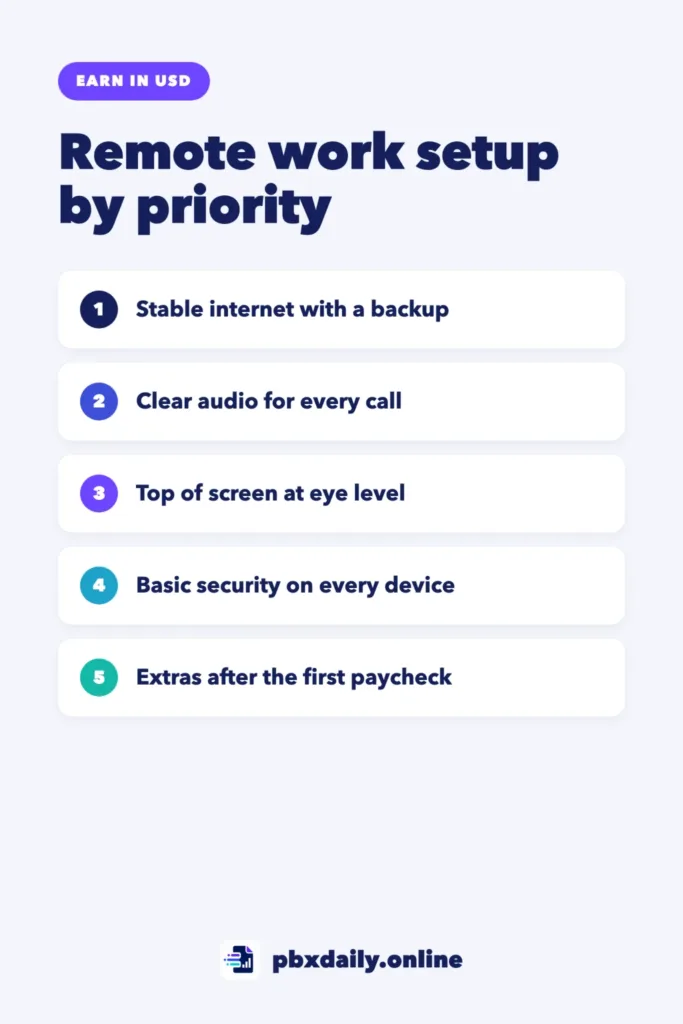
A good remote work setup isn’t about buying a lot of gear. It’s about doing things in the right order: first a stable connection and a backup plan for internet and power, then clear audio, a desk position that doesn’t hurt and basic security. This guide covers each step, what can wait until your first payments arrive, a checklist you can copy and who should pay for your equipment.
Start With the Job, Not the Gear
Before you buy anything, find out what the company or client expects. Some ask for a minimum internet speed, a quiet space or your camera on in every meeting. Some send a laptop; others expect you to bring everything. It often depends on whether you’re a contractor or an employee, as our guide on contractor vs employee for a foreign company explains.
Step 1: Check Your Internet Speed at Work Hours
Your internet at 10 a.m. on a Sunday is not your internet at 7 p.m. on a Tuesday, when the whole street is streaming. Run a speed test at the hours you’ll actually work, on the device you’ll use, from the spot where you’ll sit. Repeat it on a few different days.
Check two numbers. Download is what you receive. Upload is what you send, and in a video call you send your voice and image the whole time. Many home plans have much lower upload than download, so a connection that feels fast for streaming can still freeze your face in a meeting.
The U.S. Federal Communications Commission publishes a Broadband Speed Guide with rough minimum speeds for common activities, including telecommuting and video calls. It lists 5 to 25 Mbps of download speed for telecommuting and 6 Mbps for HD video conferencing, each for one activity at a time. Treat any figure there as a floor, not a target. If others in your home are online while you work, the FCC’s Household Broadband Guide helps you plan for several users and devices.



When you can, use a cable to the router, and keep the router in an open spot near your desk. Then do a test video call with a friend at your usual hour and ask how you sound and look.
Step 2: Plan for Outages
Power cuts and internet drops happen in every country, and in some they happen often. You can’t prevent them, but you can make them short and let your team know what’s going on.
- A phone hotspot. Check your mobile data and test a full video call through it before you need it.
- Backup power for the router. A small uninterruptible power supply (UPS) keeps the router and modem on during short cuts, while your laptop runs on its battery.
- A second place to work. A coworking space, a library or a friend’s home with reliable internet, within 30 minutes of home.
- A ready message. Save your team’s contacts on your phone and keep a short note ready: “Power cut in my area. Back online in 20 minutes from my phone.”
For interview day, see the backup plan in our guide on how to prepare for a remote interview with a foreign company.
Step 3: Get Clear Audio Before a Better Camera
In a call in English, especially if it isn’t your first language, people forgive a blurry image far more easily than words they can’t hear.
- Use a headset with a microphone. A wired one needs no battery or pairing.
- Choose a quiet room. Curtains, rugs and a closed door reduce echo.
- Record yourself for one minute and listen back before your first meeting.
- Face a window or a lamp, not with the light behind you. The built-in laptop camera is fine to start.
Our guide to English for software developers covers the language of daily meetings and updates.
Step 4: Set Up Your Desk So It Doesn’t Hurt
You’ll sit in this spot for hours every day, so small details add up. The U.S. Occupational Safety and Health Administration (OSHA) has a Computer Workstations eTool with clear guidance. For the monitor, it recommends:
- A viewing distance between 20 and 40 inches (50 and 100 cm).
- The top of the screen at or slightly below eye level.
- The center of the screen normally 15 to 20 degrees below your eye level.
- The screen at a right angle to the window, to cut glare.
For your body, OSHA’s guide to working positions describes a neutral posture: elbows close to the body and bent between 90 and 120 degrees; hands, wrists and forearms straight and roughly parallel to the floor; back fully supported, with lower back support; and feet supported by the floor or a footrest. It also advises changing position often and walking around for a few minutes now and then.
Laptops create one common problem: when the screen is at eye level, the keyboard is too high. Raise the laptop on a stand or a stack of books and use a separate keyboard and mouse. When you’re done, go through OSHA’s evaluation checklist: each “no” points to something worth adjusting.
Step 5: Cover Basic Security
A client trusts you with code, data and logins. A few habits protect them and you:
- Turn on automatic updates for your operating system and browser.
- Use a password manager with a different strong password for each account, and turn on two-factor authentication (2FA) for email and work tools.
- Create a separate user account for work if you share the computer with family, and lock the screen when you step away.
- Follow the client’s rules. If they require a VPN, a company laptop or a specific way to store files, do it exactly that way.
What Can Wait
Many guides push you to buy a full home office on day one. These items can wait until the first payments arrive and you know what bothers you:
- A second monitor. A raised laptop screen works while you learn the job.
- An expensive chair. A normal chair with lower back support and a footrest covers the basics.
- A 4K camera. Light on your face matters more than resolution.
- An adjustable desk. Changing position often gives you much of the benefit.
Remote Work Setup Checklist
Use this table to decide what to do now and what to plan for later.
| Area | Now | After your first payment | Optional |
|---|---|---|---|
| Internet | Speed test at work hours; cable or a better router spot | A faster plan if your tests fail | A second internet provider |
| Power | Laptop charged; phone hotspot tested | A UPS for the router and modem | Backup power for the whole desk |
| Audio and video | Headset with microphone; light in front of you | A better headset if people mention noise | A higher resolution camera |
| Desk | Laptop raised; separate keyboard and mouse | A chair with lower back support | Second monitor; adjustable desk |
| Security | Updates, password manager and 2FA | Separate user account for work | A computer used only for work |
Who Pays for Your Equipment?
As a contractor, you usually buy your own equipment, and in many countries it can count as a business expense. Check that with a local accountant. As an employee hired through an employer of record, the company often provides a laptop or pays back approved purchases. Either way, get the answer in writing before you start.
One rule has no exceptions: never pay for a “starter kit” to get a job, and never deposit a check from a new employer to forward money to an equipment vendor. Both are common scams. Our guide on how to spot remote job scams shows the warning signs.
Remote Work Setup: Frequently Asked Questions
What internet speed do I need to work from home?
Enough to keep a video call stable while you share your screen, at the hours you work. Check the FCC’s guide for rough minimums, look at upload as well as download and ask the company about its own requirement.
Do I need a second monitor?
Not to start. It helps when you code or compare data side by side, but a raised laptop works well. Buy one later if you keep switching windows all day.
Should my employer pay for my home office?
If you’re an employee, ask. Many companies provide a laptop or reimburse some costs, and local law may require it in some countries. If you’re a contractor, you usually pay, so include those costs in your rate.
Sources
- OSHA: Computer Workstations eTool: Monitors
- OSHA: Computer Workstations eTool: Positions
- OSHA: Computer Workstations eTool: Evaluation (checklist)
- U.S. Federal Communications Commission: Broadband Speed Guide
- U.S. Federal Communications Commission: Household Broadband Guide
Your Next Step
This week, run a speed test at your work hours, test one video call through your phone hotspot and raise your laptop to eye level. For software, see our starter stack of tools for freelance developers. If you’re still looking for work, our guide to remote jobs for non-native English speakers shows where to search.

Luiz Loiola is a digital strategist and the founder of PBX Daily. He writes about technology, programming, artificial intelligence, freelancing, remote work, career change, and online income, helping beginners and professionals build practical digital skills, create new career opportunities, and compete in the global online market.