
Your second client sends a message on a Sunday: “Can you send me the hosting login again? And how many hours did the contact form take?” The password is somewhere in a chat from last month. The hours are a guess. The code sits in a folder called “site-final-2” on your laptop, and there’s no backup.
You don’t need 50 apps to fix this. The best tools for freelance developers at the start are few and a bit boring: one tool per job, most of them on a free plan. This guide builds a simple starter stack in six steps: a code editor, Git with a private repository, a task board, a timer, a password manager and a set of templates. It also covers what you don’t need a new tool for and when paying makes sense. The free plans below were checked on each official page on October 16, 2026.
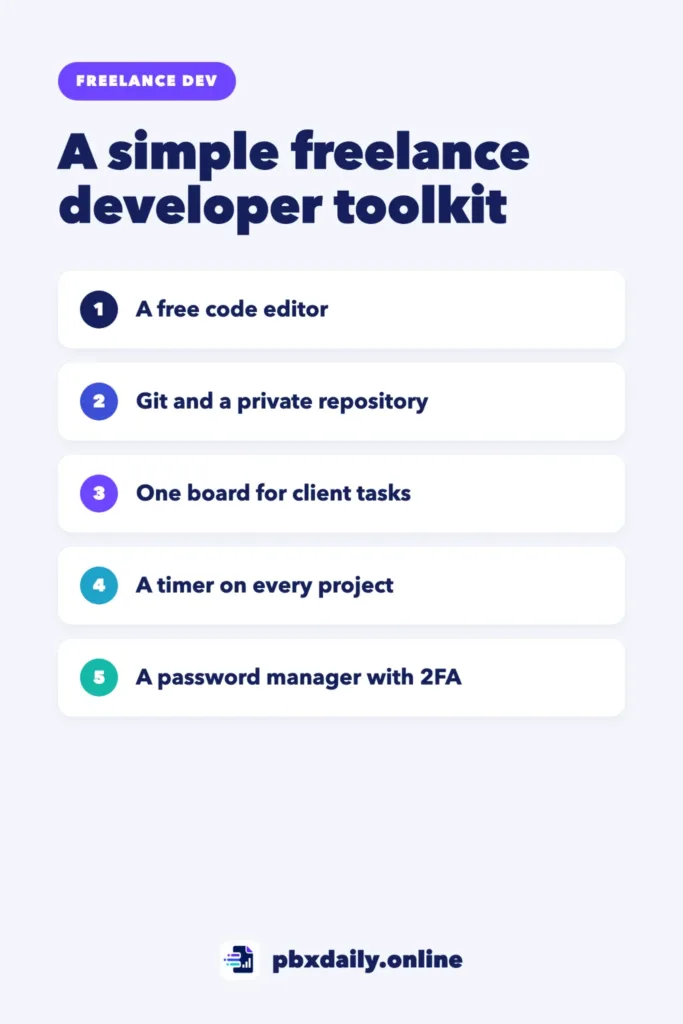
What a Freelance Developer Actually Needs at the Start
Think of your week as a list of jobs, not apps. You write code. You keep every version safe. You remember what each client asked for. You know how long the work took. You keep client logins safe. You send the same documents again and again. Each job needs one tool. If two tools do the same job, you end up checking both and trusting neither.
The rule for this stack is simple: start free, learn each tool well and pay only when a tool saves more time than it costs or when a client requires it. Plans and limits change often, so check each tool’s official pricing page before you rely on any number in this guide. We don’t use affiliate links, and the tools named here are common examples, not the only good choices.
Step 1: A Code Editor
Visual Studio Code (VS Code) is a common choice for web developers. Its official FAQ says: “VS Code is free for private or commercial use.” That means you can use it for paid client work. Add only the extensions you need, such as a formatter and a linter for your main language, and stop there. If you already use another editor and like it, keep it.
Step 2: Git and a Private Repository for Every Client
Git describes itself as a “free and open source distributed version control system.” Put every client project in its own repository from day one, even a one-page site. If you break something on Friday night, you can go back to the version that worked. New to Git? Start with our guide to Git and GitHub for beginners.



GitHub’s pricing page lists unlimited public and private repositories on the Free plan, along with Issues and Projects and 2,000 CI/CD minutes per month for GitHub Actions. Keep client code private unless the client agrees in writing that you can show it. GitHub’s documentation also says it has required two-factor authentication (2FA) for users who contribute code on GitHub.com, starting in March 2023, so turn it on now.
Never commit passwords or API keys. Keep them in an environment file listed in your .gitignore.
Step 3: One Board for Tasks and Client Requests
Client requests arrive by email, chat and calls. If they live only in your head or your inbox, something gets lost. Put every request on one board with three columns: To do, Doing and Done.
Two free options work well:
- Trello Free: the pricing page lists up to 10 collaborators per Workspace, up to 10 boards per Workspace, unlimited cards and files up to 10 MB each. One board per client covers a small client list.
- GitHub Projects: included in the GitHub Free plan. If your code is already on GitHub, your tasks can sit next to it.
One rule matters more than the tool: changes go in writing. When a client asks for “one small change” on a call, add it as a card and send a short message to confirm it. That record helps if the project starts to grow beyond what you agreed.
Step 4: A Timer on Every Project
Track your hours even on fixed-price projects. Without real numbers, every new quote is a guess.
- Clockify Free: the pricing page says you can track as much time as you want, with unlimited projects. Reports on the Free plan cover a data range of one month, so write down your monthly totals.
- Toggl Track Free: the pricing page calls it “free forever,” and its FAQ says the free plan works for up to 3 users.
After two or three projects, compare your estimates with the real hours and use the real numbers in your next quote. Our guide on how to price your first freelance web project shows how.
Step 5: A Password Manager and 2FA for Client Logins
Logins pile up fast: hosting, domains, WordPress admin, email and analytics. Keeping them in a chat or a spreadsheet puts the client’s business at risk.
Bitwarden’s pricing page describes its free plan as “Always free,” with unlimited passwords and devices and sharing with one other user. Other password managers work too. What matters is that you use one.
Simple rules for client access:
- Never send or ask for passwords in chat or email.
- Ask for your own user account instead of the owner’s login whenever the platform allows it.
- Turn on 2FA for your email first, then GitHub and your password manager. Your email can reset everything else.
- When the project ends, hand access back and ask the client to change passwords or remove your user.
Step 6: Templates for Proposals, Contracts and Files
A template is a tool too, and it costs nothing. Keep one folder with a proposal template, a contract template, a kickoff checklist and a handover document that lists returned logins, how to update the site and what isn’t included. Our guide on what to include in a freelance contract lists the clauses that protect you.
What You Don’t Need a New Tool For
Long tool lists push you to sign up for everything. Some jobs don’t need a new tool at the start:
- Hosting: a portfolio or a simple static site can go online for free. See how to deploy a website for free.
- Invoices: a clear template is enough at first. Our guide on how to invoice international clients covers what to put on each one.
- Chat and calls: use what the client already uses. Don’t ask a new client to install an app just to talk to you.
Tools for Freelance Developers at a Glance
| Task | Free option | When to pay |
|---|---|---|
| Write code | VS Code | Not needed for the editor itself |
| Version control | Git and GitHub Free | When a client needs more than the Free plan offers |
| Tasks | Trello Free or GitHub Projects | When you hit the board or collaborator limits |
| Time tracking | Clockify Free or Toggl Track Free | When you need longer reports or billing features |
| Passwords | Bitwarden Free | When you need to share with more people |
| Templates | Your own documents | Not needed |
Plans and limits change, so check each official pricing page before you decide.
When It’s Worth Paying
Pay for a tool when one of these is true:
- It saves more time than it costs. If a feature saves you two hours a month, compare that with what you earn in two hours.
- A client requires it. Some clients want you to work in their own accounts. They usually give you access, so ask before you buy.
- You hit a real limit. Upgrade when the free plan stops working for you today, not because it might stop next year.
Freelance Developer Tools: Frequently Asked Questions
Do I need paid tools to start freelancing?
No. Every tool in this starter stack is free software or has a free plan, as checked on the official pages. Pay later, when a tool clearly saves time or a client asks for it.
What software do freelance web developers use?
Most use a code editor such as VS Code, Git with a code hosting service such as GitHub, a task board, a time tracker and a password manager. Some clients ask you to work in their own tools, so be ready to learn new ones.
How do I keep client passwords safe?
Store them in a password manager, turn on 2FA and ask for your own user account instead of the owner’s login. Never share passwords in chat or email, and remove your access when the project ends.
Sources
All pages were checked on October 16, 2026.
- Visual Studio Code: Frequently Asked Questions
- Git: git-scm.com
- GitHub: Pricing
- GitHub Docs: About mandatory two-factor authentication
- Trello: Pricing
- Clockify: Pricing
- Toggl Track: Pricing
- Bitwarden: Pricing
Your Next Step
Set up the stack in one afternoon: install the editor, create a private repository for your current project, make one board, start a timer and move every client login into a password manager. Then go find work with our guide on how to get your first freelance web development client. Working from home for clients abroad? Our remote work setup checklist covers internet, audio and your desk.

Luiz Loiola is a digital strategist and the founder of PBX Daily. He writes about technology, programming, artificial intelligence, freelancing, remote work, career change, and online income, helping beginners and professionals build practical digital skills, create new career opportunities, and compete in the global online market.